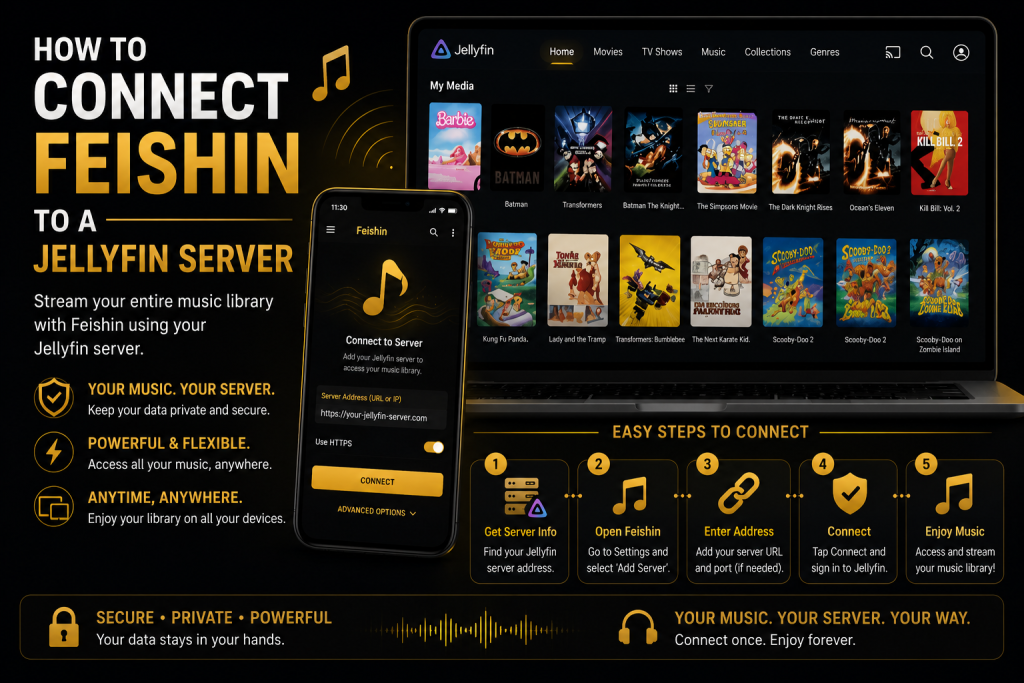
If you have a personal music collection and want a beautiful desktop application for streaming it, Feishin paired with Jellyfin is one of the best combinations available. Jellyfin manages and organizes your music library, while Feishin provides a modern interface designed specifically for music playback. Together they create a fast, private, and completely self-hosted music streaming experience.
This guide explains how to connect Feishin to a Jellyfin server from start to finish, including everything you need to know to avoid common setup mistakes.
What Is Feishin?
Feishin is an open-source desktop music player built for self-hosted music servers. Instead of storing music itself, it connects to your existing media server and streams your collection through a clean, responsive interface.
Feishin supports several popular server platforms, including Jellyfin, Navidrome, and other Subsonic-compatible servers. Once connected, it automatically displays your music library, album artwork, artists, playlists, and metadata while providing powerful playback controls and queue management.
Because it is open source, users benefit from frequent updates and a community-driven development process.
Why Use Jellyfin with Feishin?
Jellyfin is one of the most popular free media servers available today. It allows you to organize movies, TV shows, music, photos, and other media on your own hardware.
When paired with Feishin, Jellyfin becomes a dedicated music streaming solution that rivals many commercial platforms. Your music stays on your own server while Feishin delivers a polished listening experience with features such as album browsing, artist pages, playlists, gapless playback, and search functionality.
This combination is ideal for users who want complete privacy and ownership of their music library without depending on third-party services.
Requirements Before You Begin
Before connecting Feishin to Jellyfin, make sure a few basic requirements are in place.
First, your Jellyfin server should already be installed and running. Whether it is hosted on a desktop computer, NAS device, Raspberry Pi, or VPS, the server must be accessible from your network.
Second, you should already have a music library configured inside Jellyfin. If your music folders have not yet been added, scan them first so Jellyfin can identify artists, albums, and tracks.
Finally, download the latest version of Feishin that matches your operating system. The application is available for Windows, macOS, and Linux.
Also Read: How to Fix Common Feishin Errors and Connection Problems
Step 1: Verify That Your Jellyfin Server Is Running
Before opening Feishin, confirm that your Jellyfin server is working correctly.
Open your preferred web browser and enter your Jellyfin server address. For example, your server might be available on a local network using an address such as:
Or, if you have configured remote access with HTTPS, your address may look similar to:
If the Jellyfin login page appears, your server is working correctly and ready for Feishin.
If the page does not load, the problem is with the server or network rather than Feishin.
Step 2: Open Feishin
Launch Feishin after installing it on your computer.
The first time you open the application, you will be asked to add a media server. If you have already configured another server, you can always add a new one through the server management settings.
Choose Jellyfin as the server type.
Step 3: Enter Your Server Information
Feishin needs a few pieces of information before it can connect.
The most important setting is the server URL. Enter the complete address exactly as it appears in your web browser. Be careful not to omit the port number if your server uses one.
Next, enter your Jellyfin username and password.
After entering your credentials, click the Connect button. Feishin will attempt to authenticate with your Jellyfin server and establish a secure connection.
If everything has been configured correctly, your music library will begin loading almost immediately.
Step 4: Allow Feishin to Sync Your Library
The first synchronization may take several minutes depending on the size of your collection.
During this process, Feishin retrieves information about artists, albums, songs, genres, playlists, and album artwork from Jellyfin. Once the initial sync is complete, future updates are usually much faster because only new or modified items need to be refreshed.
Large music libraries containing thousands of tracks may require a little more time during the first connection, but this is perfectly normal.
Step 5: Start Playing Music
Once synchronization finishes, your library becomes available inside Feishin.
You can browse artists alphabetically, search for albums instantly, create playback queues, build playlists, and explore genres. Album artwork and metadata provided by Jellyfin will automatically appear throughout the interface, creating a polished music listening experience.
Playback begins immediately after selecting a song, provided your server is reachable and your network connection is stable.
Connecting to a Remote Jellyfin Server
Many users prefer accessing their music while away from home. This is possible if your Jellyfin server is configured for remote access.
Instead of using a local IP address, you should connect through your public domain name or reverse proxy. Using HTTPS is highly recommended because it encrypts communication between Feishin and your server, protecting your login credentials and music data while traveling or using public networks.
If remote access is not working, verify your DNS settings, reverse proxy configuration, firewall rules, and port forwarding.
Also Read: How to Manage Playlists Efficiently in Feishin
Common Connection Problems
Although connecting Feishin to Jellyfin is usually straightforward, several issues can prevent a successful connection.
The most common problem is entering an incorrect server URL. Even a small typo in the address can prevent Feishin from locating your server.
Another frequent issue occurs when Jellyfin is offline. If the server itself is not running, Feishin cannot establish a connection regardless of the settings you enter.
Network firewalls may also block communication between your computer and the server. If Feishin works on one network but not another, firewall or router settings are often responsible.
Users who enable HTTPS sometimes encounter certificate warnings caused by expired or self-signed SSL certificates. Installing a valid certificate generally resolves these errors.
Optimizing Performance
After connecting Feishin successfully, there are several ways to improve your experience.
Keep both Feishin and Jellyfin updated to their latest versions, as updates often include performance improvements and bug fixes. Organize your music library with consistent metadata, album artwork, and properly tagged files to ensure the interface looks clean and professional.
If your library is very large, consider running Jellyfin on hardware with sufficient memory and storage performance. Faster SSDs and a reliable network connection can noticeably improve browsing speed and reduce loading times.
Why Choose Feishin Over a Web Browser?
Although Jellyfin’s web interface includes music playback, Feishin is designed specifically for desktop listening.
Its interface focuses entirely on music rather than video content, making navigation faster and more enjoyable. Features such as keyboard shortcuts, queue management, album-focused browsing, and an elegant design provide a richer listening experience than using a browser alone.
For users who spend hours listening to music every day, Feishin offers a dedicated environment that feels more like a traditional desktop music player while still taking advantage of Jellyfin’s powerful media server capabilities.
Conclusion
Connecting Feishin to a Jellyfin server is a straightforward process that gives you a fast, private, and feature-rich way to enjoy your self-hosted music collection. By entering the correct server URL, using your Jellyfin account credentials, and ensuring your server is properly configured, you can quickly access your entire music library from a modern desktop interface.
FAQs
Can Feishin connect to Jellyfin?
Yes. Feishin has built-in support for Jellyfin and connects directly using your server address and account credentials.
Does Feishin work over the internet?
Yes. As long as your Jellyfin server is configured for remote access and reachable through a secure connection, Feishin can stream your music from almost anywhere.
Why can’t Feishin find my music?
If your library appears empty, verify that Jellyfin has scanned your music folders successfully. Refresh the library inside Jellyfin and reconnect Feishin if necessary.
Is HTTPS required?
No, but HTTPS is strongly recommended, especially when connecting from outside your home network. It encrypts traffic and improves security.
Can I use multiple Jellyfin servers?
Yes. Feishin supports managing multiple server connections, allowing you to switch between different music libraries when needed.