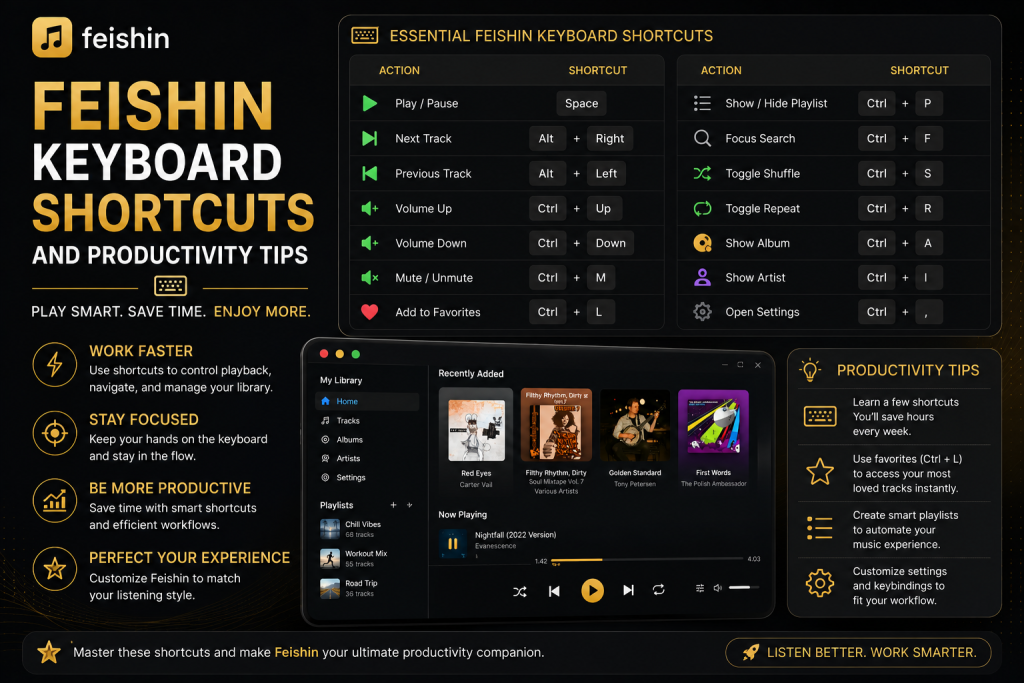
Whether you’re listening to music while working, studying, or relaxing, constantly reaching for your mouse can interrupt your workflow. That’s where Feishin keyboard shortcuts become incredibly useful. Designed as a modern desktop music player for Jellyfin, Navidrome, and other Subsonic-compatible servers, Feishin offers a streamlined experience that becomes even more efficient when you learn its keyboard controls and productivity features.
In this guide, you’ll discover useful Feishin keyboard shortcuts, practical productivity tips, and best practices for creating a faster and more enjoyable listening experience.
Why Learn Keyboard Shortcuts?
Keyboard shortcuts aren’t just about convenience—they help you stay focused. Whether you’re coding, writing, designing, gaming, or studying, switching between your keyboard and mouse repeatedly can slow you down. By using shortcuts, you can control your music without breaking your concentration.
For users with large music libraries, shortcuts also make navigation significantly faster. Instead of scrolling through thousands of albums or artists, you can instantly search, play, pause, or skip tracks using simple commands.
Essential Feishin Keyboard Shortcuts
Depending on your operating system and Feishin version, some shortcuts may vary. However, these are among the most commonly used controls that improve everyday productivity.
| Action | Shortcut |
| Play or Pause | Space |
| Next Track | Ctrl + Right Arrow (Cmd + Right Arrow on macOS) |
| Previous Track | Ctrl + Left Arrow (Cmd + Left Arrow on macOS) |
| Open Search | Ctrl + K (Cmd + K on macOS) |
| Refresh Library | Ctrl + R |
| Close Dialog | Esc |
| Select Items | Arrow Keys |
Also Read: How to Manage Playlists Efficiently in Feishin
Use Search Instead of Browsing
One of the biggest productivity improvements comes from using Feishin’s search feature instead of manually browsing your music library.
If your collection contains thousands of artists or albums, scrolling through long lists quickly becomes inefficient. Instead, use the search shortcut to instantly locate songs, artists, albums, genres, or playlists.
Searching by a few letters is often much faster than navigating through folders, especially for users with extensive music collections.
Build Temporary Queues
Many people create playlists for every listening session, but that’s not always necessary.
Feishin’s queue system allows you to quickly organize songs for the current session without permanently saving a playlist. You can rearrange tracks, remove unwanted songs, or add albums to play next while the current track continues uninterrupted.
This approach works particularly well during work sessions, study time, or parties where your music selection changes frequently.
Organize Your Library Properly
Keyboard shortcuts become much more useful when your music library is well organized.
Take some time to ensure your music files include:
- Correct artist names
- Album titles
- Release years
- Genres
- Track numbers
- High-quality album artwork
Accurate metadata makes searching faster and browsing more enjoyable. Instead of finding multiple duplicate artist entries or missing albums, your library remains clean and easy to navigate.
Take Advantage of Album View
While many users immediately search for individual songs, Feishin is designed with album browsing in mind.
Listening to complete albums often provides a better experience, especially for concept albums or live recordings. The beautifully displayed album artwork also makes exploring your collection much more enjoyable.
Rather than jumping randomly between tracks, consider browsing by artist and album to rediscover forgotten music in your library.
Keep Your Queue Organized
As your listening session grows, your playback queue can become cluttered.
Instead of allowing hundreds of songs to accumulate, periodically remove tracks you no longer plan to hear. A clean queue makes it easier to see what’s coming next and reduces unnecessary scrolling.
Small habits like this keep Feishin responsive and your listening sessions more organized.
Use Playlists Strategically
Not every group of songs needs to become a permanent playlist.
Reserve playlists for music you genuinely revisit, such as workout mixes, study playlists, road trips, or relaxing evening sessions.
Everything else can simply remain in your temporary queue.
This prevents your playlist collection from becoming cluttered with dozens of nearly identical lists that are only used once.
Customize Your Listening Environment
A productive music experience isn’t only about shortcuts.
Take advantage of Feishin’s appearance settings to create an interface that feels comfortable during long listening sessions. Adjusting window size, layout preferences, and display settings can make browsing your music more enjoyable while reducing visual distractions.
A clean workspace often leads to better focus and a smoother workflow.
Refresh Your Library Regularly
Whenever you add new music to your Jellyfin or Navidrome server, remember to refresh your library.
Refreshing ensures that recently added albums, updated metadata, and new artwork appear correctly inside Feishin. If you frequently expand your collection, making library refreshes part of your routine helps keep everything organized and searchable.
Learn Your Most Frequently Used Commands
You don’t need to memorize every shortcut immediately.
Start by learning the commands you use most often, such as:
- Play and pause
- Skip tracks
- Search
- Open albums
- Refresh your library
After a few days of regular use, these actions become automatic and noticeably improve your productivity.
Also Read: How to Back Up and Restore Your Feishin Configuration Without Losing Settings
Improve Performance with a Well-Maintained Server
Feishin’s speed also depends on the performance of your music server.
If you’re using Jellyfin or Navidrome, ensure your server is updated and running on reliable hardware. Faster storage, adequate memory, and a stable network connection all contribute to quicker searches, smoother playback, and faster artwork loading.
Keeping your server healthy enhances every aspect of the Feishin experience.
Productivity Tips for Everyday Listening
The most productive Feishin users often develop simple habits that save time every day. Instead of relying solely on mouse navigation, they search for music using the keyboard, keep their queue organized, maintain accurate metadata, and regularly refresh their library. These small improvements create a smoother workflow and make listening to music more enjoyable.
If you spend several hours each day working on a computer, controlling your music efficiently can reduce interruptions and help you stay focused. Over time, these habits become second nature, allowing you to manage your entire library with minimal effort.
Conclusion
Learning Feishin keyboard shortcuts is one of the easiest ways to improve your music listening experience and boost productivity. Combined with smart search habits, organized playlists, clean metadata, and efficient queue management, these shortcuts help you spend less time navigating your library and more time enjoying your music.
Does Feishin support keyboard shortcuts?
Yes. Feishin includes keyboard shortcuts for common actions such as playback control, searching, and library navigation. Available shortcuts may vary slightly depending on your operating system and application version.
Can I customize keyboard shortcuts?
Support for customizable shortcuts depends on the version of Feishin you’re using. Check the application’s settings or release notes to see whether shortcut customization is available.
Do keyboard shortcuts work with Jellyfin and Navidrome?
Yes. Keyboard shortcuts control the Feishin application itself, regardless of whether you’re connected to Jellyfin, Navidrome, or another supported server.
Why should I use keyboard shortcuts?
Keyboard shortcuts reduce mouse usage, improve productivity, and allow you to control music playback without interrupting your work or study sessions.
Does organizing metadata improve search results?
Absolutely. Accurate artist names, album titles, genres, and artwork make searching, browsing, and managing your music collection much faster and more enjoyable.