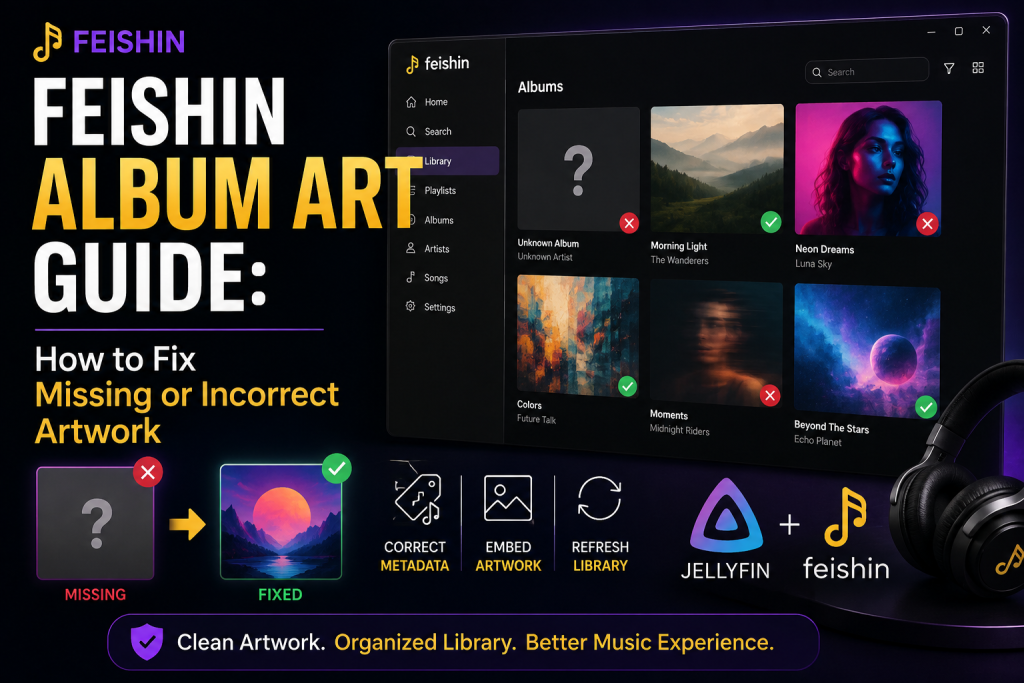
A well-organized music library is about more than having the right songs. Album artwork plays a big role in making a collection feel complete. When you open Feishin and see blank covers, the wrong artwork, or the same image appearing for several different albums, it can make an otherwise well-organized library frustrating to browse.
The good news is that missing or incorrect artwork is usually fixable. In many cases, the problem is related to music metadata, image files, folder organization, or how the server has identified an album.
Feishin works with your self-hosted music library rather than storing your music collection itself. This means that when artwork looks wrong in Feishin, the first place to investigate is usually the music server and the files behind the library.
This guide explains why album artwork can go missing or become incorrect and what you can do to fix it.
Why Is Album Artwork Important?
Album artwork is one of the easiest ways to identify music visually.
When you have a library containing hundreds or thousands of songs, recognizing an album by its cover is often much faster than reading the title. Good artwork also makes browsing playlists, artists, and albums more enjoyable.
For a self-hosted music library, artwork can come from different sources. Depending on how your collection is organized and tagged, the server may use embedded artwork inside music files, artwork stored alongside an album, or metadata retrieved from an online source.
If those sources contain incomplete or conflicting information, the artwork displayed by Feishin may not be what you expect.
Common Reasons Album Artwork Is Missing
Before changing anything, it helps to understand why the problem is happening.
Some of the most common causes include:
- The music files do not contain album artwork.
- The artwork is stored in an unsupported or incorrectly named file.
- Album metadata is incomplete.
- The server identified the wrong album.
- Several albums have been placed in the same folder.
- Artwork exists locally but the server has not rescanned the library.
- Cached metadata is still being displayed.
- Different tracks contain inconsistent album information.
- The artwork image is too large, damaged, or otherwise unsuitable.
The correct solution depends on which of these problems is affecting your collection.
Check Your Music Folder First
The easiest place to start is the actual folder containing the album.
Suppose your library is organized like this:
Music
└── Artist Name
└── Album Name
├── 01 – Track One.flac
├── 02 – Track Two.flac
├── 03 – Track Three.flac
└── cover.jpg
This is generally easier for a media server to understand than putting tracks from multiple albums into the same folder.
If the album artwork is stored separately from the music files, check that the image is actually present in the album folder.
Open the folder manually on your computer and verify that the image isn’t missing, corrupted, or accidentally saved somewhere else.
Also Read: 10 Hidden Feishin Features Every Music Lover Should Know
Use a Consistent Folder Structure
Good organization can prevent many artwork problems before they happen.
A useful structure is:
Artist
└── Album
├── Track 01
├── Track 02
├── Track 03
└── cover.jpg
The exact folder names are up to you, but the important thing is consistency.
For example, don’t keep three different albums from the same artist inside one folder unless your server is configured to handle that structure correctly.
Separating albums makes it easier for the server to determine which artwork belongs to which release.
This becomes increasingly important as your collection grows.
Check Album and Artist Metadata
If the artwork is incorrect rather than completely missing, metadata is one of the first things you should investigate.
Imagine you have an album called Example Album. If some tracks have the album name written as:
Example Album
while others contain:
Example Album (Deluxe Edition)
the server may treat them as different releases.
Similarly, inconsistent artist or album artist information can cause tracks to be grouped incorrectly.
Important metadata fields include:
- Track title
- Artist
- Album
- Album Artist
- Track number
- Disc number
- Release year
- Genre
For most music collections, Album Artist is particularly useful because it helps group tracks correctly when an album contains multiple contributing artists.
Check the Artwork Embedded in Your Music Files
Many music files can contain artwork directly inside their metadata.
This is called embedded album art.
For example, a FLAC or MP3 file can contain the audio data along with tags and an embedded image.
If one track contains the correct artwork while another track from the same album contains a completely different image, your library may produce inconsistent results.
This is especially common with music collections assembled from multiple sources over the years.
You can inspect your files using a compatible music-tagging application.
If necessary, update the metadata and embed the same artwork into the relevant tracks.
You don’t necessarily need to embed artwork into every file if your preferred library organization uses folder-based artwork, but consistency is important.
Choose a Good Album Cover
If you’re adding artwork manually, use a clear image with a square aspect ratio.
A typical album cover might look like:
1400 × 1400 pixels
or:
2000 × 2000 pixels
You don’t need an enormous image for a music library. Extremely large images can consume unnecessary storage and may take longer to process.
A reasonably sized JPEG or PNG is usually sufficient for everyday library browsing.
Make sure the artwork is actually the correct cover for the release you’re organizing.
Different editions of the same album may have different artwork, so check whether you have the standard release, deluxe edition, remaster, or another version.
Rename Artwork Files Consistently
If you’re using separate artwork files in album folders, consistency can help.
For example:
cover.jpg
can be easier to manage than having every album use a completely different filename.
You may also encounter collections containing names such as:
- folder.jpg
- front.jpg
- album.jpg
The exact artwork filename recognized can depend on your server and configuration, so check the relevant Jellyfin documentation if a particular naming convention isn’t being detected.
The key point is to avoid randomly naming artwork files and assuming every server will recognize them in exactly the same way.
Refresh the Jellyfin Music Library
After correcting artwork or metadata, Feishin may not immediately display the changes.
That’s because Feishin is showing information provided by the server.
If you’ve changed a file but the server hasn’t noticed the change, Feishin can continue showing the old information.
In Jellyfin, initiate a library scan or refresh the relevant library.
Allow the scan to finish before checking Feishin again.
For a large collection, the process may take some time.
Avoid repeatedly starting scans if the previous scan is still running. Give the server enough time to process the library.
What If the Wrong Album Artwork Is Showing?
Incorrect artwork can be more confusing than missing artwork.
If an album is displaying another album’s cover, first check whether the server has grouped the tracks correctly.
For example, you might have:
Artist
├── Album A
└── Album B
but the tracks in Album B could contain metadata identifying them as Album A.
The server may then associate the tracks with the wrong album.
Check the following information:
Album name: Is it identical across all tracks?
Album Artist: Are the tracks using the correct album artist?
Release information: Are you mixing different editions?
Folder structure: Are the albums separated correctly?
Correcting these details often resolves the artwork issue.
Why Does the Same Artwork Appear on Multiple Albums?
If several unrelated albums have the same artwork, there may be a metadata or folder organization problem.
For example, imagine your music collection contains:
Artist A
Album X
and:
Artist B
Album Y
but both albums have been incorrectly tagged with the same album and artist information.
The server may interpret them as one release.
Another possibility is that the same image has been placed in multiple folders.
Check the individual album directories and verify that each one contains the intended artwork.
Refresh Feishin After Making Changes
Once you’ve fixed the server-side information, restart or refresh Feishin.
The exact behavior can depend on the version and configuration you’re using, but refreshing the client can help ensure that it is displaying the latest information from the server.
If the artwork still hasn’t changed, give Jellyfin another opportunity to finish its library processing before assuming the problem is with Feishin.
It’s useful to remember the basic relationship:
Music files → Jellyfin → Feishin
If Jellyfin itself displays the wrong artwork, Feishin is generally just receiving the information that the server provides.
Therefore, checking the server first is often the fastest troubleshooting method.
Check Artwork in Jellyfin
A useful troubleshooting technique is to compare what you see in Jellyfin with what you see in Feishin.
If the artwork is incorrect in both applications, investigate your music files, metadata, and Jellyfin library.
If Jellyfin shows the correct artwork but Feishin doesn’t, the problem may be related to the client, cached information, or synchronization.
This simple comparison can save a lot of time because it tells you which part of the setup needs attention.
Avoid Constantly Changing Your Library Structure
Once your library is working properly, try not to make unnecessary structural changes.
Moving hundreds of albums between folders, renaming artists, and changing metadata repeatedly can cause additional library-management work.
It’s better to establish a consistent structure early and maintain it.
For a large library, consider making changes in smaller batches.
For example, instead of modifying 2,000 albums at once, fix one artist or one section of your library and then allow Jellyfin to rescan it.
This makes it much easier to identify what caused a problem if something goes wrong.
Also Read: How to Connect Feishin to a Jellyfin Server
What About High-Resolution Artwork?
High-resolution artwork can look excellent, but bigger isn’t always better.
A music server may need to process artwork for many albums, and extremely large images can consume more storage and resources.
For normal music-library browsing, a good-quality square image at a reasonable resolution is usually enough.
If you’re building a very large library, keeping artwork sizes consistent can also make the collection easier to manage.
Keep a Backup of Your Metadata and Artwork
If you’ve spent a lot of time cleaning up your music library, don’t let that work disappear.
Keep a backup of your original music files and important metadata.
If your music collection is stored on a single hard drive and that drive fails, you could lose both your audio files and the organization you’ve created around them.
An external drive or another backup location can provide an additional layer of protection.
A backup is especially important if you’ve manually corrected thousands of tracks or created custom artwork.
Best Practices for a Clean Feishin Library
If you want your Feishin library to stay organized, follow a few simple habits:
- Keep each album in its own folder.
- Use consistent metadata.
- Keep Album Artist information accurate.
- Use square, good-quality artwork.
- Avoid unnecessary duplicate artwork.
- Keep file and folder names consistent.
- Rescan Jellyfin after major library changes.
- Check Jellyfin before troubleshooting Feishin.
- Keep a backup of your music collection.
- Avoid mixing different album releases without clear organization.
These habits can prevent many artwork-related problems before they occur.
Final Thoughts
Missing or incorrect album artwork can make a self-hosted music library feel messy, but it is usually a problem that can be solved with a little organization.
Start by checking the album folder, file metadata, and artwork files. Then make sure Jellyfin has correctly identified the album and completed a library scan. Finally, refresh Feishin and check whether the updated information is being displayed.
The most important thing to remember is that Feishin is part of a larger music-server setup. When artwork isn’t displaying correctly, don’t automatically assume that Feishin is the source of the problem. The underlying music files and Jellyfin metadata are often more important.
FAQs
Why is album artwork missing in Feishin?
Missing artwork can be caused by incomplete metadata, absent artwork files, incorrect folder organization, or a Jellyfin library that hasn’t been refreshed after changes.
Why is Feishin showing the wrong album cover?
Check the album and artist metadata first. If tracks have inconsistent album information or the server has grouped multiple releases together, Feishin may display the wrong artwork.
How do I update album artwork in Jellyfin?
Update the artwork or metadata in your music collection and then refresh or rescan the relevant Jellyfin library. Once the server has processed the changes, check Feishin again.
What size should album artwork be?
A square image around 1400×1400 or 2000×2000 pixels is generally more than sufficient for normal music-library browsing. Extremely large images are usually unnecessary.
Should I embed album artwork in my music files?
Embedding artwork can be useful because the image travels with the music metadata. However, some users prefer separate artwork files. The most important factor is using a consistent approach across your collection.