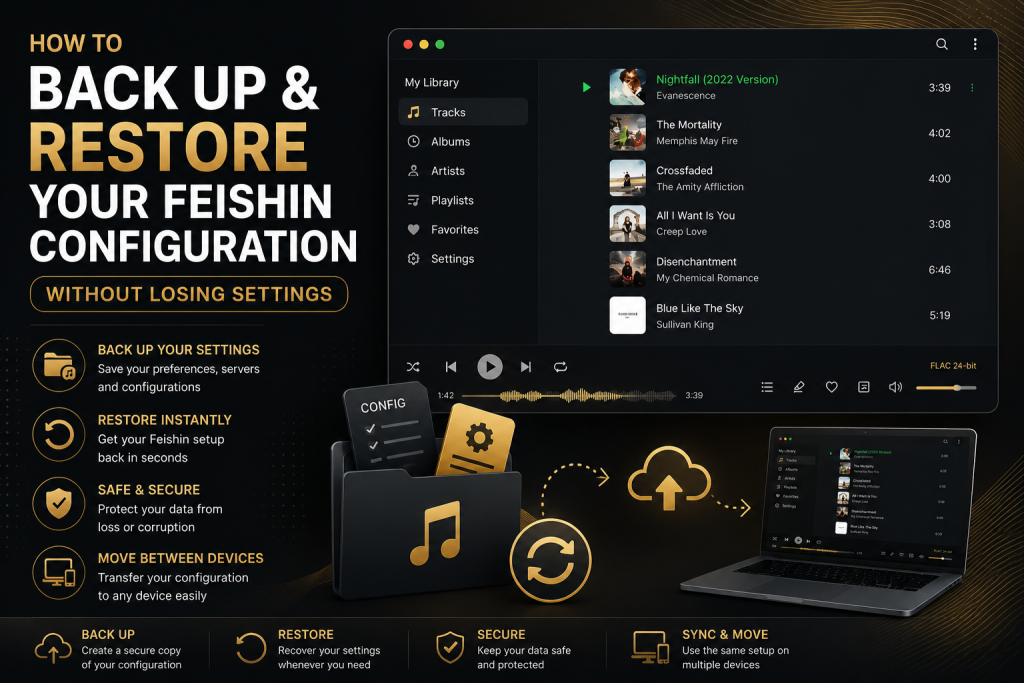
If you’ve spent time customizing Feishin to match your workflow, the last thing you want is to lose all of your settings because of a system reinstall, hardware failure, or accidental deletion. From server connections and appearance preferences to playback options and custom configurations, rebuilding everything from scratch can be both frustrating and time-consuming.
Creating regular backups ensures that your personalized setup can be restored quickly whenever something goes wrong. Whether you’re moving to a new computer, reinstalling your operating system, or simply creating a safety copy, backing up your Feishin configuration is one of the smartest maintenance habits you can develop.
In this guide, you’ll learn what should be backed up, where Feishin stores important configuration files, and the best practices for protecting your personalized setup.
Why You Should Back Up Feishin
Many users assume they only need backups for documents and photos, but application settings are equally valuable. After spending hours customizing Feishin, losing your configuration can be a major inconvenience.
A proper backup helps you:
- Restore your setup after reinstalling your operating system.
- Recover from accidental file deletion.
- Transfer your configuration to a new computer.
- Protect your settings from hardware failures.
- Save time by avoiding manual reconfiguration.
Instead of recreating server connections, playback preferences, themes, and other settings, you can simply restore your backup and continue using Feishin as before.
What Is Included in a Feishin Configuration?
Your Feishin configuration consists of much more than basic application preferences.
Depending on how you use the software, your configuration may include:
- Server connection details
- Login information (where applicable)
- Interface preferences
- Theme selection
- Playback settings
- Audio preferences
- Queue behavior
- Keyboard shortcuts
- Library display options
- Cached application settings
If you’ve carefully customized Feishin over time, these settings represent a significant investment of effort that is worth protecting.
Also Read: Feishin vs Finamp: Which Jellyfin Music Client Should You Choose?
When Should You Create a Backup?
Many people only think about backups after something has already gone wrong.
A better approach is to create backups before making significant changes.
Good times to back up Feishin include:
Before Updating Feishin
Although updates are generally safe, creating a backup beforehand provides peace of mind.
If anything unexpected happens during the update process, you can restore your previous configuration.
Before Reinstalling Your Operating System
Operating system installations often remove application data.
Backing up your configuration beforehand ensures you won’t lose your personalized settings after reinstalling Windows, macOS, or Linux.
Before Migrating to a New Computer
Moving to a new device becomes much easier when you already have a complete backup.
Instead of configuring Feishin again, simply restore your saved files.
After Major Configuration Changes
If you’ve recently:
- Added multiple music servers
- Customized playback behavior
- Changed themes
- Organized your library
- Updated preferences
it’s a good idea to create a fresh backup.
This ensures your latest improvements are preserved.
Preparing Before Creating a Backup
Before copying any files, spend a few minutes preparing your system.
Proper preparation reduces the chances of creating an incomplete backup.
Start by:
- Closing Feishin completely.
- Waiting a few seconds to ensure all settings are saved.
- Confirming that your music server has synchronized successfully.
- Making sure there are no ongoing library scans.
Closing the application prevents configuration files from being modified while you’re copying them.
Where Feishin Stores Its Configuration Files
Like many desktop applications, Feishin stores its configuration separately from your music library.
The exact location depends on your operating system.
Windows
On Windows, application settings are typically stored inside your user profile within the AppData directory.
Most users can locate these files by opening the appropriate configuration folder associated with their user account.
macOS
On macOS, application preferences are generally stored inside the user’s Library directory.
These folders contain configuration files that preserve your personalized settings.
Linux
Linux distributions commonly store configuration files inside hidden directories located within the user’s home folder.
These folders contain application preferences and other user-specific data.
Because directory locations can vary slightly depending on installation methods and versions, it’s always worth checking the latest documentation for your operating system before manually copying files.
Creating a Manual Backup
The simplest backup method is creating a manual copy of Feishin’s configuration folder.
The process is straightforward.
Step 1
Completely close Feishin.
Do not leave it running in the background.
Step 2
Locate the configuration directory for your operating system.
Step 3
Copy the entire configuration folder rather than selecting individual files.
This reduces the risk of forgetting an important setting.
Step 4
Paste the copied folder into a safe backup location.
Examples include:
- External hard drive
- USB flash drive
- NAS device
- Cloud storage
- Another internal drive
Keeping multiple backup copies provides additional protection.
Step 5
Label the backup clearly.
For example:
Feishin Backup
2026-08-03
Using dates makes it easier to identify your most recent backup later.
Choose a Safe Backup Location
Where you store your backup matters almost as much as creating it.
Good storage locations include:
External Drives
External SSDs and hard drives provide reliable long-term storage.
Because they remain disconnected most of the time, they’re protected from many system failures.
Cloud Storage
Cloud services allow you to access backups from multiple devices.
They also protect your files if your computer experiences hardware problems.
Network Attached Storage (NAS)
Users with home servers often store application backups on a NAS.
This creates a centralized backup system that’s accessible across multiple devices.
Best Practices for Managing Backups
Simply creating one backup isn’t enough.
Following a few good habits can greatly improve your chances of recovering successfully.
Create Multiple Copies
Avoid relying on a single backup.
Keeping at least two or three copies in different locations provides better protection against accidental loss.
Update Backups Regularly
Whenever you make important configuration changes, create a fresh backup.
An outdated backup may not contain your newest settings.
Test Your Backups Occasionally
A backup is only useful if it can actually be restored.
Occasionally verifying your backup files helps ensure they haven’t become corrupted.
Keep Older Versions
Instead of replacing every previous backup, consider keeping several versions.
If one becomes damaged, you’ll still have older copies available.
Common Backup Mistakes to Avoid
Even experienced users sometimes overlook simple details.
Try to avoid these common mistakes:
- Backing up while Feishin is still running.
- Copying only selected files instead of the complete configuration folder.
- Storing backups only on the same drive as your operating system.
- Forgetting to update backups after making major changes.
- Deleting older backups too quickly.
Avoiding these mistakes makes the recovery process much smoother if you ever need to restore your settings.
Also Read: Common Feishin Mistakes and How to Avoid Them
How to Restore Your Feishin Configuration
Restoring your Feishin configuration is usually just as straightforward as creating a backup. Whether you’ve reinstalled the application, switched to a new computer, or recovered from a system failure, restoring your saved configuration allows you to continue using Feishin with the same preferences and settings.
Before restoring, make sure you have the most recent backup available and that Feishin is not running.
The general process is:
- Install the latest version of Feishin.
- Launch it once, then close the application.
- Locate the configuration directory on your operating system.
- Replace the newly created configuration files with your backup.
- Restart Feishin.
If the backup was created correctly, your preferences should load automatically.
Restoring After Reinstalling Feishin
If you’ve reinstalled Feishin after updating your operating system or replacing your storage drive, restoring your settings can save a significant amount of time.
Instead of:
- Reconnecting every server
- Changing playback settings
- Selecting themes again
- Adjusting interface preferences
- Reconfiguring keyboard shortcuts
your previous setup can be restored within a few minutes.
This makes reinstalling Feishin much less disruptive, especially if you’ve spent time customizing the application.
Moving Your Configuration to a New Computer
One of the biggest advantages of creating backups is being able to move seamlessly between devices.
Suppose you’ve purchased a new desktop or laptop.
Instead of starting from scratch:
- Install Feishin.
- Copy your backup folder.
- Replace the default configuration.
- Open the application.
Your familiar interface, playback preferences, and personalized settings should all be available.
Although your music library may still need to be accessible from the new computer, restoring the configuration eliminates the need to repeat all of your customization work.
Restoring Server Connections
Many Feishin users connect to self-hosted music servers such as Navidrome, Jellyfin, or other Subsonic-compatible services.
After restoring your configuration, verify that:
- Server addresses are correct.
- Ports haven’t changed.
- Usernames are accurate.
- Passwords are still valid.
- SSL certificates remain trusted if applicable.
If your server information has changed since creating the backup, simply update those details within Feishin.
Verify Everything After Restoring
Once your backup has been restored, spend a few minutes confirming that everything works correctly.
Check the following:
Playback
Play several tracks to ensure audio functions normally.
Library
Verify that albums, artists, playlists, and metadata appear correctly.
Themes
Confirm that your preferred appearance settings have been restored.
Audio Preferences
Review your playback options, including:
- Volume behavior
- Gapless playback
- Equalizer settings (if used)
- Output device
- Keyboard Shortcuts
Test any custom shortcuts you’ve configured.
Taking a few minutes to verify these items helps identify any missing settings before you begin using Feishin regularly again.
Syncing Your Configuration Across Multiple Devices
Some users enjoy using Feishin on more than one computer.
For example:
- Desktop
- Laptop
- Home server
- Workstation
Keeping a synchronized backup makes it easier to maintain a consistent experience across all devices.
Whenever you make important configuration changes:
- Create a fresh backup.
- Replace older backup files.
- Restore the updated configuration on your other devices.
Keeping every installation synchronized reduces confusion and saves time.
Conclusion
Backing up your Feishin configuration is a simple task that can save hours of frustration if you ever need to reinstall the application, migrate to a new computer, or recover from an unexpected system issue. By preserving your personalized settings, server connections, playback preferences, and interface customizations, you can quickly return to your familiar setup without repeating the entire configuration process.
FAQs
Will backing up Feishin save my music files?
No. A Feishin configuration backup stores your application settings, preferences, and server information. Your music files remain in their original storage location, such as a local drive, NAS, or self-hosted music server.
How often should I back up my configuration?
If you frequently change playback settings, connect new servers, or customize the interface, creating a backup every few weeks—or before major updates—is a good habit.
Can I use the same backup on another computer?
Yes. After installing Feishin on the new device, restore your saved configuration files. If the new computer has access to the same music server or library, your setup should be very similar to your previous one.
What happens if my backup is outdated?
An older backup will restore the settings it contains, but it won’t include any changes made after that backup was created. This is why regular backups are recommended.
Is cloud storage a good place to save backups?
Yes. Services like Google Drive, OneDrive, Dropbox, or iCloud can be convenient options for storing backup copies. Keeping an additional copy on an external drive also provides extra protection.


One Response