Streaming services have made it incredibly easy to listen to music almost anywhere. However, there is one major downside: you do not actually control your music library. Your favorite albums can disappear from a platform, subscription prices can change, and access to your collection depends on an external service.
A personal music streaming server offers a different approach. Instead of uploading your music to a commercial streaming platform, you keep your collection on your own computer or server and access it from your devices.
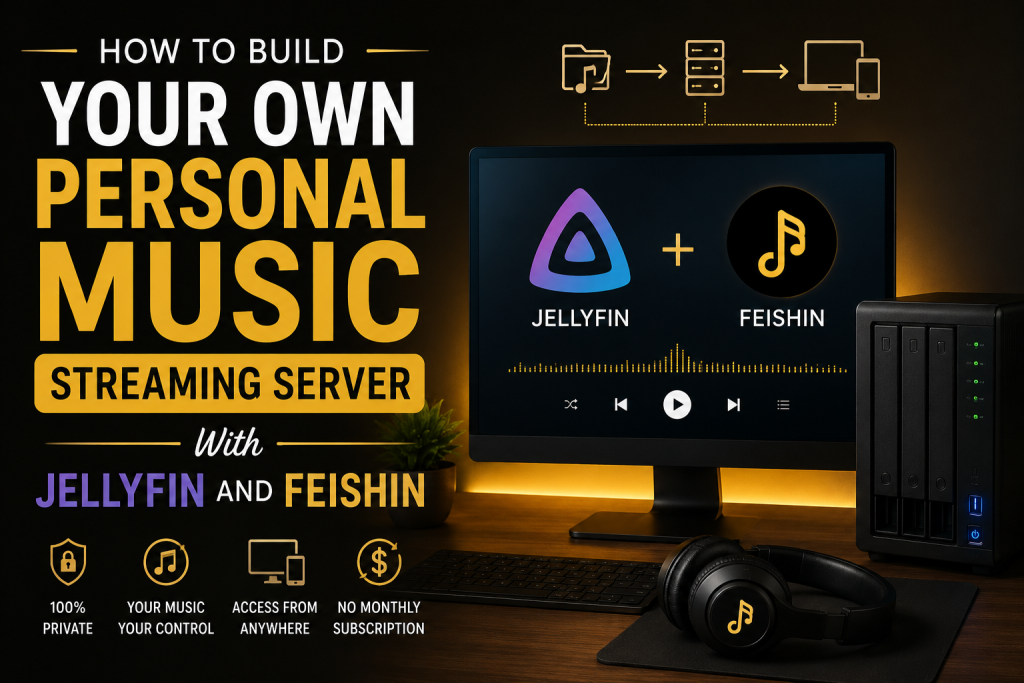
One of the easiest ways to do this is by combining Jellyfin with Feishin. Jellyfin works as the media server that stores and organizes your music, while Feishin provides a modern desktop interface for browsing and playing that library.
In this guide, we’ll walk through how to build a personal music streaming setup using Jellyfin and Feishin.
What Is a Personal Music Streaming Server?
A personal music streaming server is essentially your own private version of a music streaming service.
Instead of Spotify or another commercial platform storing your music, you keep your legally acquired music files on a computer, NAS, or home server. Software such as Jellyfin organizes those files and makes them available to compatible clients.
The basic setup looks like this:
Your music files → Jellyfin server → Feishin → Your device
Jellyfin handles the backend. It scans your music collection, reads metadata, creates artists and albums, and provides the streaming functionality.
Feishin acts as the client. It connects to your Jellyfin server and gives you an interface where you can browse albums, search artists, create playlists, and listen to your collection.
The biggest advantage is that you have much more control over your library.
What You Need Before Getting Started
You don’t need expensive hardware to create a personal music server.
A basic setup can include:
- A Windows, Linux, or other supported computer
- A collection of legally obtained music files
- Enough storage space for your library
- Jellyfin Server
- Feishin
- A stable network connection
You can use an old desktop computer or laptop as your server if it has enough storage and remains reasonably reliable.
If you have a large music collection, a NAS or dedicated home server can be more convenient because it is designed to remain available for longer periods.
The server does not necessarily need powerful hardware for music streaming. Audio files generally require far fewer resources than high-resolution video, so even relatively modest hardware can work well for a personal music setup.
Step 1: Organize Your Music Collection
Before installing Jellyfin, spend some time organizing your music.
A clean folder structure makes it much easier for Jellyfin to identify albums and artists correctly.
A simple structure could look like:
Music
├── Artist 1
│ ├── Album 1
│ └── Album 2
├── Artist 2
│ ├── Album 1
│ └── Album 2
└── Artist 3
└── Album 1
Within an album folder, keep the individual tracks together.
For example:
Artist Name
└── Album Name
├── 01 – Track One.flac
├── 02 – Track Two.flac
└── 03 – Track Three.flac
You don’t have to use exactly this structure, but consistency is important.
It’s also helpful to make sure your music files have accurate metadata. Album title, artist, track number, genre, and release information can all affect how your library appears in Jellyfin.
If your collection has incorrect metadata, fixing it before importing the library can save considerable time later.
Step 2: Install Jellyfin Server
The next step is installing Jellyfin on the computer that will store your music.
Jellyfin is the backend of your setup. It scans your folders and makes your media available to clients.
Download the appropriate Jellyfin Server package for your operating system and follow the installation instructions.
After installation, open the Jellyfin web interface from a browser on your local network.
The first-time setup wizard will guide you through several configuration steps.
You will normally be asked to create an administrator account and configure your server settings.
Choose a strong password for the administrator account. Your Jellyfin server may eventually be accessible from multiple devices, so protecting the administrative account is important.
Also Read: How to Back Up and Restore Your Feishin Configuration
Step 3: Create a Music Library
Once Jellyfin is installed, you need to tell it where your music is stored.
From the Jellyfin dashboard, create a new media library and select Music as the content type.
Then choose the folder containing your music.
For example, if your music is stored in:
D:\Music
you would select that directory as your music library.
Jellyfin will scan the folder and attempt to identify the artists, albums, tracks, and other metadata.
The initial scan can take some time if you have a large collection.
After the scan finishes, open your music library and check whether everything has been organized correctly.
Step 4: Check Your Metadata
One of the most important parts of a good personal music server is accurate metadata.
You may find that most albums are identified correctly, but occasionally Jellyfin may display an incorrect artist, missing artwork, or an album with the wrong release information.
If this happens, don’t immediately assume that the server is broken.
The problem is often caused by missing or inconsistent metadata in the music files.
Check the tags for problematic tracks and albums. Important fields include:
- Artist
- Album Artist
- Album
- Track number
- Disc number
- Genre
- Release information
Consistent metadata makes your collection much easier to browse.
It also becomes particularly useful when you have hundreds or thousands of tracks.
Step 5: Connect Feishin to Jellyfin
Once your Jellyfin server is working properly, you can install Feishin on your computer.
Feishin is designed to provide a dedicated interface for accessing music stored on compatible self-hosted music servers.
After installing Feishin, open the application and enter the information required to connect to your Jellyfin server.
If you’re connecting from the same home network, you’ll generally use the local address of your Jellyfin server.
For example, your Jellyfin server might be accessible through an address similar to:
http://192.168.1.100:8096
The exact address and port depend on your network and Jellyfin configuration.
Enter the server address and authenticate using your Jellyfin account.
Once the connection succeeds, Feishin should be able to access your music library.
You can then browse artists, albums, songs, playlists, and other available content directly from the Feishin interface.
Step 6: Test Playback
Before making your server available outside your home, test everything locally.
Play several different albums and tracks.
Try different file formats if your collection contains them.
Pay attention to whether tracks start quickly, whether album artwork appears correctly, and whether your playlists and library information are displayed properly.
Testing locally is useful because it eliminates many potential networking problems.
If playback works perfectly inside your home network, you can then focus on remote access if you need it.
Step 7: Access Your Music From Other Devices
One of the most useful features of a personal music server is being able to access your collection from multiple devices.
For example, your music server could remain at home while you access the library from another computer.
However, accessing Jellyfin remotely requires additional network configuration.
You may need to configure a reverse proxy, VPN, or another secure remote-access solution.
If you decide to expose your Jellyfin server directly to the internet, security should be a priority.
Avoid using weak passwords and avoid exposing unnecessary services or ports.
For many users, a VPN-based approach can be an attractive option because it allows remote access without making the media server broadly accessible to the public internet.
Step 8: Keep Your Server Secure
A personal server gives you more control, but it also means that you are responsible for maintaining it.
Keep Jellyfin and your operating system updated.
Use strong, unique passwords for accounts.
If you make your server remotely accessible, use encrypted connections wherever possible.
You should also consider who actually needs access to the server.
If you are the only person using it, there is little reason to create unnecessary accounts.
Security doesn’t have to be complicated, but it should not be ignored.
Step 9: Back Up Your Music
A server is not a backup.
This is an important distinction.
If your music collection is stored on a single hard drive and that drive fails, you could lose your entire library.
Consider keeping at least one additional copy of important music files.
For example, you could maintain:
Primary copy: Your Jellyfin server
Backup copy: External hard drive or another storage device
If your collection is particularly valuable, you may want an additional backup stored somewhere separate from the server.
Remember that backups are useful only if they can actually be restored. Occasionally checking your backup is therefore a good habit.
Step 10: Improve Your Feishin Experience
After the basic setup works, you can start customizing the experience.
Organize your playlists according to your listening habits.
You might create playlists for workout music, relaxing evenings, favorite albums, or different genres.
You can also improve the overall experience by cleaning up album artwork and metadata.
A well-organized library can feel surprisingly similar to using a commercial streaming service, except that the content is your own collection.
This is particularly useful for people who have spent years collecting music and want one convenient place to access everything.
Also Read: Common Feishin Mistakes and How to Avoid Them
What Are the Advantages of Jellyfin and Feishin?
There are several reasons someone might choose this setup over a conventional streaming service.
You Control Your Library
Your music remains under your control rather than depending on a third-party catalog.
No Monthly Music Subscription
Once your server and storage are set up, you don’t need to pay a monthly streaming subscription simply to access your own files.
Of course, there can still be costs associated with hardware, electricity, storage, or remote-access services.
Your Collection Is Available in One Place
Instead of keeping music scattered across multiple computers and drives, Jellyfin can bring your collection together in a single library.
More Control Over Your Files
You can choose your preferred formats, folder structure, metadata, and storage system.
A Personalized Experience
Feishin gives you a dedicated interface for interacting with your personal music collection instead of forcing you to use a generic file browser.
Common Problems You May Encounter
Building a personal music server is relatively straightforward, but you may encounter a few problems.
If Feishin cannot connect to Jellyfin, first check that the Jellyfin server is running and that the address is correct.
If albums are missing, check whether Jellyfin has finished scanning the music folder.
If artwork is incorrect, examine the album metadata and artwork information.
If remote playback doesn’t work, check your network configuration rather than immediately changing the Feishin installation.
Many problems become easier to diagnose when you test one component at a time.
Is This Setup Worth It?
For someone with a growing personal music collection, Jellyfin and Feishin can be an excellent combination.
The initial setup requires some work, especially if your music library has poor metadata or your goal is remote access. However, once everything is configured, daily use can be very simple.
You can keep your music on your own hardware, organize it the way you want, and access it through a modern interface.
The setup is also flexible. You can start with a basic computer and a small collection and upgrade your storage or server hardware later as your library grows.
Final Thoughts
Building a personal music streaming server doesn’t require a huge amount of technical knowledge or expensive equipment.
With Jellyfin handling the server side and Feishin providing the listening experience, you can create a private music streaming environment around your own collection.
The most important steps are organizing your files, maintaining accurate metadata, configuring Jellyfin correctly, connecting Feishin, and keeping your server secure and backed up.
Once those pieces are in place, you have a music system that can grow with your collection and give you significantly more control over how your music is stored and accessed.
FAQs
What is Jellyfin used for?
Jellyfin is a free, open-source media server that organizes and streams your personal media collection. In this setup, it manages your music library and provides the server that Feishin connects to.
What is Feishin used for?
Feishin is a desktop music player designed for self-hosted music libraries. It can connect to Jellyfin and provide an interface for browsing and playing your music collection.
Do I need a powerful computer to run Jellyfin for music?
No. Music streaming generally requires much less hardware than video streaming. A reasonably modern computer with enough storage can usually handle a personal music library without problems.
Can I access my Jellyfin music library outside my home?
Yes. You can configure your server for remote access, but you should use a secure method such as a VPN or properly configured HTTPS/reverse proxy rather than exposing unnecessary services directly to the internet.
Can Feishin work without Jellyfin?
Feishin is primarily designed to work with compatible self-hosted music servers. Jellyfin is one of the common server options used with Feishin.