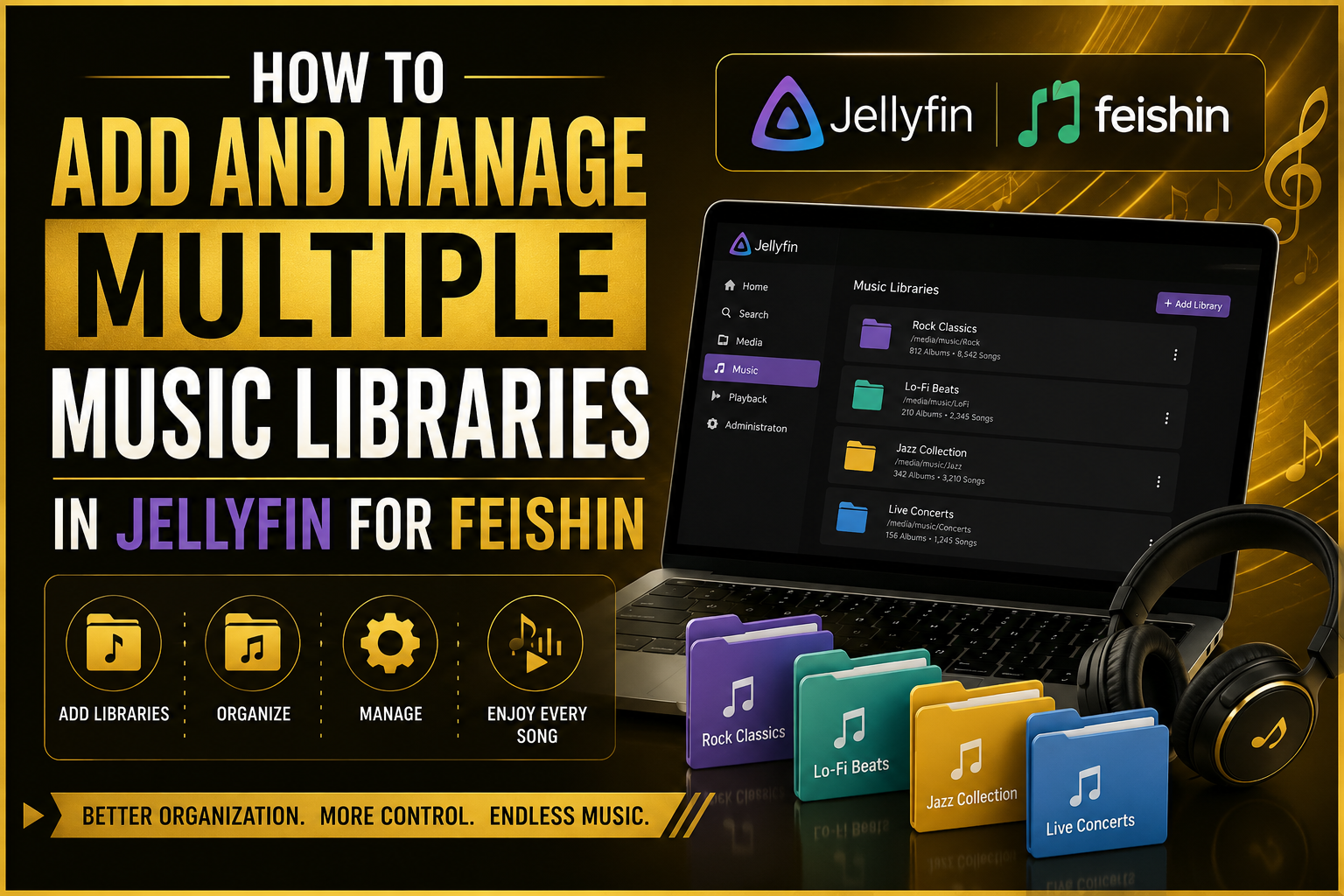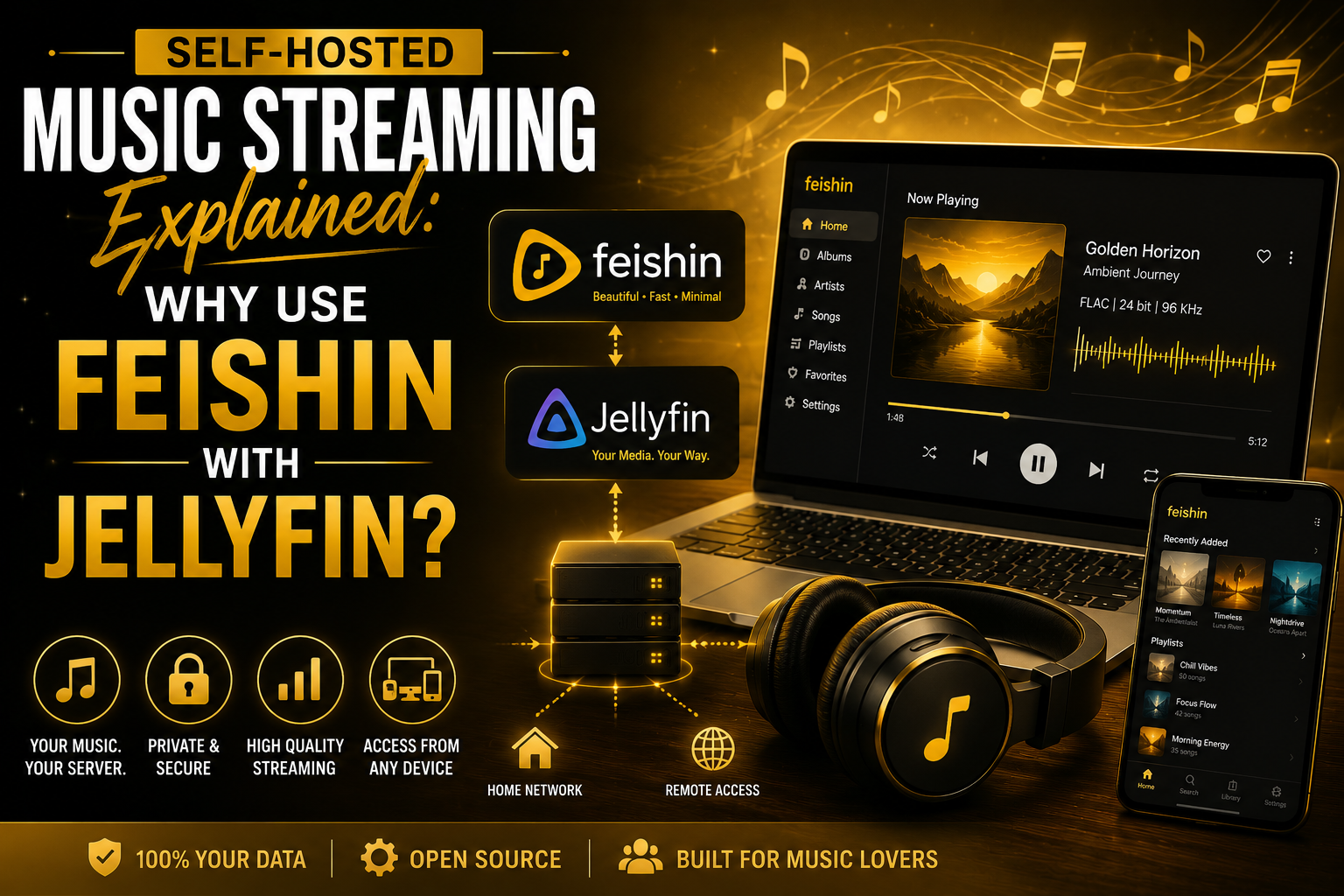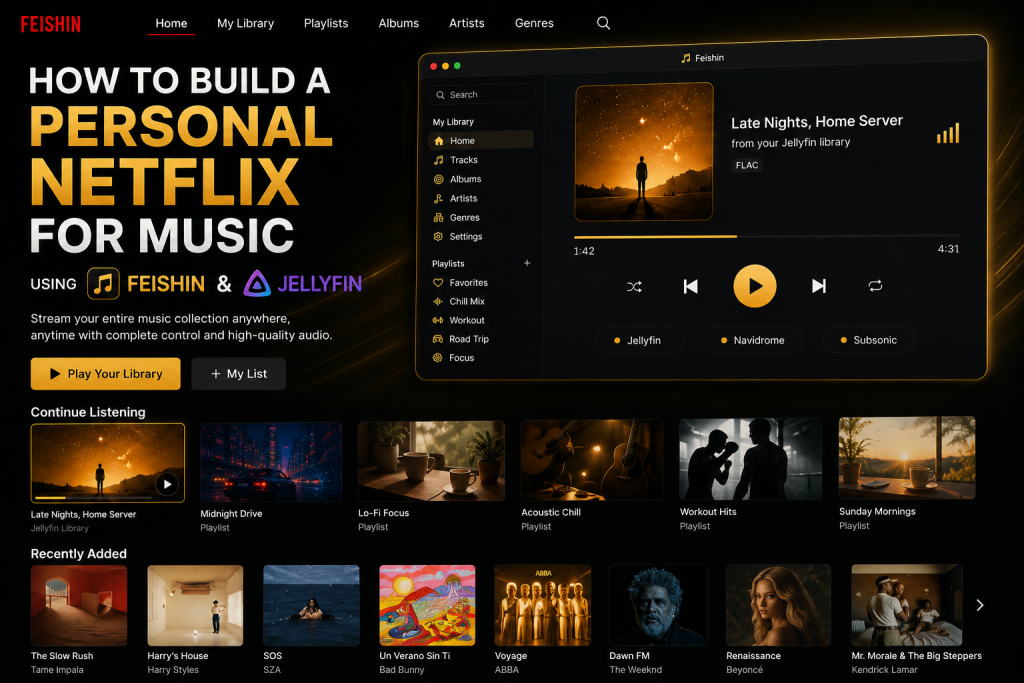
Music streaming services have made listening to songs easier than ever. Platforms like Spotify, Apple Music, and YouTube Music provide millions of tracks instantly, but they also come with monthly subscriptions, regional restrictions, advertisements, and limited control over your library.
If you’ve spent years collecting albums, purchasing high-quality music, or organizing a personal collection, relying entirely on commercial streaming platforms may not be ideal. That’s where Feishin and Jellyfin come in.
Together, these two free and open-source applications let you create a private music streaming service that works much like your own version of Netflix—but for music. Instead of paying a subscription to stream someone else’s library, you stream your own collection from anywhere while maintaining complete ownership of your files.
Whether you’re a casual music lover or an audiophile with thousands of FLAC albums, this guide will help you build a fast, beautiful, and reliable personal music streaming platform.
Why Build Your Own Music Streaming Server?
Building a self-hosted music server offers several benefits over traditional streaming services.
You Own Your Music
When you host your own collection, your library never disappears because of licensing agreements. Every album, playlist, and song remains available whenever you want.
No Monthly Subscription
Once your server is set up, there are no recurring music streaming fees. Your only costs are the hardware and internet connection you already use.
Higher Audio Quality
Many commercial services compress audio to reduce bandwidth usage. With Jellyfin and Feishin, you can stream your original files in MP3, FLAC, AAC, WAV, or other supported formats without unnecessary quality loss.
Better Privacy
Commercial platforms collect listening habits, search history, and recommendations based on your activity. A self-hosted solution keeps your listening data under your control.
Access Anywhere
With proper remote access configuration, you can enjoy your music from home, work, or while traveling.
What Are Jellyfin and Feishin?
Although they work together, each application has a different role.
Jellyfin
Jellyfin is a free media server that organizes movies, TV shows, photos, and music into one centralized library.
For music lovers, Jellyfin:
- Scans your music folders
- Reads artist and album metadata
- Downloads artwork
- Organizes your collection
- Streams audio over your network or internet
Think of Jellyfin as the engine that stores and delivers your music.
Feishin
Feishin is a modern desktop music player designed specifically for self-hosted media servers.
Instead of storing music itself, Feishin connects to Jellyfin and provides:
- A beautiful interface
- Fast searching
- Playlist management
- Artist pages
- Album browsing
- Queue management
- Keyboard shortcuts
- Cross-platform compatibility
If Jellyfin is the server, Feishin is the polished player you interact with every day.
What You’ll Need Before Starting
Fortunately, you don’t need expensive hardware.
A basic setup includes:
- A Windows, Linux, or macOS computer
- Jellyfin installed
- Feishin installed
- Your music collection
- A stable internet connection
- Basic networking knowledge (optional but helpful)
Many users even run Jellyfin on an old desktop or mini PC that’s always powered on.
Also Read: How to Sync Feishin Across Multiple Devices
Step 1: Organize Your Music Library
Before installing anything, spend a little time organizing your music files.
A clean library produces much better results.
A recommended folder structure looks like this:
Music
│
├── Coldplay
│   ├── Parachutes
│   ├── A Rush of Blood to the Head
│
├── Imagine Dragons
│   ├── Evolve
│   ├── Mercury
│
├── Ed Sheeran
│   ├── Divide
│   ├── Equals
Keeping artists and albums separated helps Jellyfin correctly identify every release.
Clean Up Metadata
Metadata includes information such as:
- Artist
- Album
- Genre
- Track number
- Release year
- Album artwork
If metadata is inconsistent, your library may appear messy.
Before importing your collection, make sure your files have accurate tags.
Correct metadata allows Feishin to display attractive artist pages and properly organized albums.
Choose High-Quality Audio Files
If possible, avoid very low bitrate MP3 files.
Recommended formats include:
- FLAC
- MP3 (320 kbps)
- AAC
- ALAC
- WAV
Higher-quality files provide a noticeably better listening experience, especially when using quality headphones or speakers.
Step 2: Install Jellyfin
Visit the official Jellyfin website and download the version for your operating system.
The installation process is straightforward and similar to installing any standard application.
Once installed, launch Jellyfin.
The first startup opens a setup wizard that guides you through the initial configuration.
You’ll be asked to:
- Create an administrator account
- Choose your preferred language
- Configure your media libraries
This only takes a few minutes.
Step 3: Create Your Music Library
Inside the setup wizard, you’ll be prompted to add media libraries.
Select:
Music
Then browse to the folder containing your organized music collection.
For example:
D:\Musicor
/home/user/MusicJellyfin will begin scanning every album, artist, and song.
Depending on the size of your collection, this process may take anywhere from a few minutes to several hours.
Let Jellyfin Scan Everything
During the scan, Jellyfin performs several tasks automatically.
It identifies:
- Artists
- Albums
- Songs
- Genres
- Album artwork
- Release dates
A properly tagged library usually imports without any manual work.
If some albums appear incorrectly, you can refresh or edit metadata later.
Step 4: Review Your Library
Once scanning finishes, open the Music section in Jellyfin.
Spend a few minutes checking that:
- Albums are grouped correctly.
- Artist names are accurate.
- Album covers appear properly.
- Track numbers are in order.
- Songs play without errors.
Fixing these small issues now creates a much smoother experience once Feishin connects to your server.
Optimize Jellyfin for Music Streaming
Jellyfin includes several settings that improve music playback.
Consider enabling:
- Automatic metadata updates
- High-quality album artwork
- Fast library scanning
- Audio transcoding only when necessary
If most of your devices support your audio formats, direct streaming is preferable because it preserves quality and reduces server load.
Organize Playlists Early
Before connecting Feishin, you can also begin creating playlists inside Jellyfin.
For example:
- Workout Mix
- Relaxing Evening
- Road Trip
- Focus Music
- Classical Collection
These playlists automatically become available when using compatible clients like Feishin, saving time later.
Why Jellyfin Is the Perfect Foundation
Jellyfin isn’t limited to music. If you decide to expand your personal media server in the future, you can also organize:
- Movies
- TV shows
- Family videos
- Podcasts
- Audiobooks
- Photos
This flexibility makes Jellyfin a long-term solution rather than a music-only application.
By combining it with Feishin, you get the best of both worlds: a powerful media server and a modern, elegant music player that feels as polished as commercial streaming services.
Step 5: Install Feishin
After your Jellyfin server is running correctly, the next step is installing Feishin.
Feishin is available for Windows, macOS, and Linux, making it easy to use on almost any desktop operating system.
Install the application as you would any other desktop program. Once the installation is complete, launch Feishin. The first screen will ask you to connect to a media server.
Unlike traditional music players, Feishin doesn’t store your songs locally. Instead, it acts as a client that connects to Jellyfin and streams your library whenever you need it.
Step 6: Connect Feishin to Jellyfin
Connecting the two applications only takes a few minutes.
You’ll typically need the following information:
- Your Jellyfin server address
- Username
- Password
For example, if Jellyfin is running on your home computer, your server address may look similar to:
http://192.168.1.100:8096
If you’re using HTTPS or remote access, the address will be different.
After entering your details, Feishin will verify the connection and begin loading your music library.
If everything is configured correctly, you’ll immediately see your artists, albums, playlists, and recently added songs.
Explore Your Music Library
One of Feishin’s biggest strengths is its clean and responsive interface.
Instead of browsing through folders, your collection is presented visually.
You can quickly navigate by:
- Artists
- Albums
- Songs
- Genres
- Recently Added
- Favorites
- Playlists
Large libraries containing thousands of tracks remain easy to browse thanks to fast search and efficient indexing.
Customize the Interface
Feishin allows you to personalize your listening experience.
Depending on the version you’re using, you can customize options such as:
- Light or dark theme
- Grid or list views
- Album artwork size
- Playback behavior
- Queue preferences
- Sidebar organization
These small adjustments make daily use much more enjoyable, especially if you spend hours listening to music.
Build Playlists Like a Streaming Service
A music collection becomes much more useful when it’s organized into playlists.
Some ideas include:
- Morning Motivation
- Deep Focus
- Chill Evenings
- Road Trips
- Party Mix
- Instrumental Favorites
- Jazz Collection
- Workout Playlist
Because playlists are synchronized through Jellyfin, they remain available whenever you log into Feishin.
As your collection grows, creating playlists by mood, genre, or activity makes it easier to discover the right music without searching through hundreds of albums.
Mark Favorites
Feishin lets you quickly favorite songs, albums, and artists.
Over time, this creates your own personalized recommendations.
Instead of searching for the same songs repeatedly, your favorites become a central hub containing the music you enjoy most.
Many users also create a “Recently Loved” playlist that updates regularly with their newest discoveries.
Enable Gapless Playback
If you enjoy live albums or classical music, gapless playback is an essential feature.
Without it, small pauses may occur between tracks.
When supported by your audio files, enabling gapless playback creates smooth transitions, making albums play exactly as the artists intended.
This is especially useful for:
- Live concerts
- DJ mixes
- Classical recordings
- Progressive rock albums
- Improve Performance
If your music library contains tens of thousands of tracks, a few optimizations can improve speed.
Consider these best practices:
- Store your music on an SSD whenever possible.
- Keep metadata clean and consistent.
- Use high-quality album artwork without excessively large image files.
- Allow Jellyfin to complete library scans before heavy use.
- Keep both Jellyfin and Feishin updated to the latest stable versions.
These simple steps help searches load faster and keep browsing smooth.
Access Your Music Anywhere
One of the biggest advantages of using Jellyfin and Feishin is remote access.
Instead of limiting your music to your home network, you can securely stream it from almost anywhere with an internet connection.
Imagine listening to your personal collection while:
- Traveling
- Working at the office
- Studying at university
- Visiting friends
- Relaxing in a café
Remote access gives your library the same convenience as commercial streaming platforms while keeping your files under your control.
For security, always use strong passwords and, if possible, HTTPS encryption when exposing your server to the internet.
Share with Family
Another benefit of Jellyfin is multi-user support.
You can create separate accounts for family members so everyone has their own:
- Favorites
- Play history
- Playlists
- Viewing preferences
This keeps each person’s recommendations separate while allowing everyone to enjoy the same shared music library.
Also Read: Best Audio Settings in Feishin for High-Quality Music Playback
Keep Your Library Backed Up
Building a personal music server often represents years of collecting and organizing files.
Regular backups are essential.
Consider backing up:
- Your music files
- Jellyfin configuration
- Metadata
- Playlists
- Album artwork
An external hard drive or NAS can help protect your collection from hardware failures.
Troubleshooting Common Issues
Even a well-configured setup may occasionally run into problems. Here are a few common issues and their solutions.
Feishin Can’t Connect to Jellyfin
Check that:
- Jellyfin is running.
- The server address is correct.
- The correct port is being used.
- Your firewall isn’t blocking the connection.
- Username and password are correct.
Missing Album Artwork
If covers don’t appear:
- Refresh metadata in Jellyfin.
- Ensure music files contain embedded artwork or accurate tags.
- Allow the metadata scan to complete.
Duplicate Albums
Duplicate entries are usually caused by:
- Multiple copies of the same album.
- Incorrect metadata.
- Mixed artist names.
Cleaning your library before importing usually resolves this issue.
Slow Library Loading
If loading feels sluggish:
- Move your library to faster storage.
- Reduce unnecessary background scans.
- Optimize artwork sizes.
- Update both Jellyfin and Feishin.
Why This Setup Feels Like a Personal Netflix for Music
The combination of Jellyfin and Feishin delivers many of the features people expect from modern streaming platforms:
- Beautiful album artwork
- Instant search
- Personalized playlists
- Recently played history
- Favorites
- Fast browsing
- Cross-device compatibility
- Complete ownership of your music
- No monthly subscription
- Privacy-focused listening
The biggest difference is that you control the entire experience. Your music isn’t affected by licensing changes, regional restrictions, or subscription price increases.
Final Thoughts
Creating your own music streaming platform may sound complicated, but with Jellyfin handling your media server and Feishin providing a polished desktop experience, the process is surprisingly straightforward.
Once everything is configured, you’ll have a private streaming service tailored to your own collection. Whether you’re listening to a carefully curated FLAC library, rediscovering old favorites, or organizing playlists for every mood, this setup gives you the freedom and flexibility that traditional streaming services can’t match.
FAQs
Can I use Feishin without Jellyfin?
Feishin is designed to work with self-hosted media servers such as Jellyfin. You’ll need a compatible server to stream your music library.
Is Jellyfin free to use?
Yes. Jellyfin is completely free and open source, with no subscription fees or premium tiers.
Can I stream FLAC files with Feishin?
Yes. If your Jellyfin server stores FLAC files, Feishin can stream them, provided your device supports the format.
Can I access my music outside my home network?
Yes. By configuring secure remote access in Jellyfin, you can stream your music from anywhere with an internet connection.
Does Feishin support playlists?
Yes. You can create, edit, and manage playlists, and they sync through your Jellyfin server.